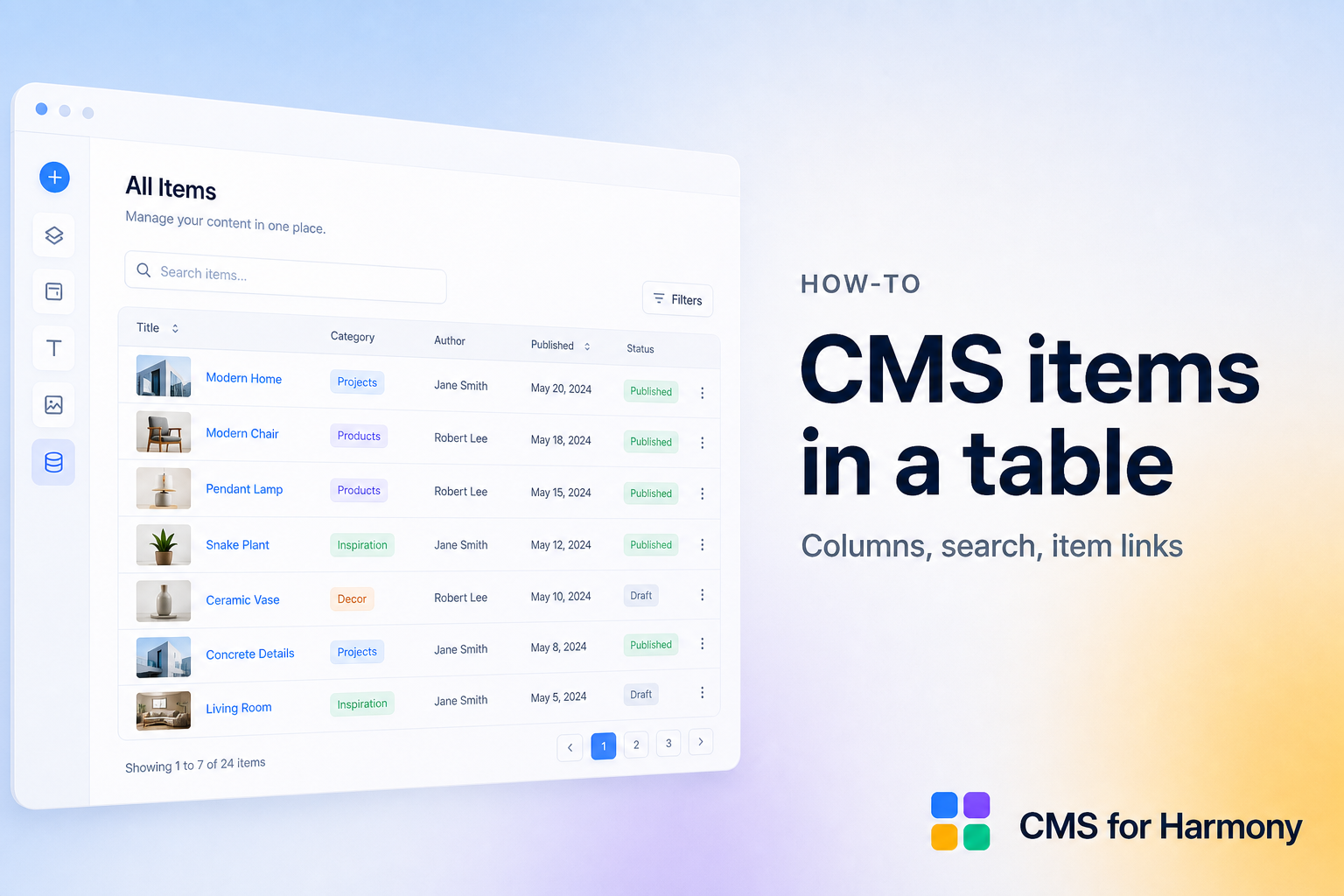
A searchable table is the right layout when cards feel too sparse: price lists, resource libraries, membership rosters, SKU inventories. Visitors scan columns, type a keyword, and optionally filter by category—without opening a spreadsheet.
This walkthrough uses the CMS for Harmony Table widget, which works on Editor, Studio, and Harmony. Native Wix can approximate tables in places, but a dedicated CMS table with search and filters is usually faster to ship.
More browsing patterns: Wix CMS Guide.
What you’ll build
| Piece | Choice |
|---|---|
| Data | Collection such as Resources (Title, Category, Format, Link, Updated) |
| Display | Table widget |
| Findability | Search bar + Category filter |
| Optional | Row links to item pages |
When to use a table vs a Repeater
| Prefer a Table when… | Prefer a Repeater when… |
|---|---|
| Many columns, dense scanning | Photos and short stories matter |
| Inventories and resource lists | Marketing directories and portfolios |
| Spreadsheet-style compare | Card layouts |
In CMS for Harmony, “cards” means Repeater layout.
Steps
- Install CMS for Harmony and create a collection with the columns you need.
- Add the Table widget to a page.
- Connect the collection, choose fields as columns, and set widths (auto or fixed).
- Open Search & filters → enable Show search bar.
- Add filters (Category, Format, and so on) with Show filter. Use ranges for numbers or dates if needed.
- Optionally add a native collection page and link rows to item URLs (Dynamic Pages how-to).
- Publish. Test search, filters, and how the table scrolls on a phone.
Product reference: Table widget. Filter details: Search & filters.
Example: resource library
- Fields: Title, Category, File type, URL, Last updated.
- Map those fields to columns.
- Search on Title; filter on Category and File type.
- If you also want a friendlier card view elsewhere, reuse the same collection with a Repeater and category filters.