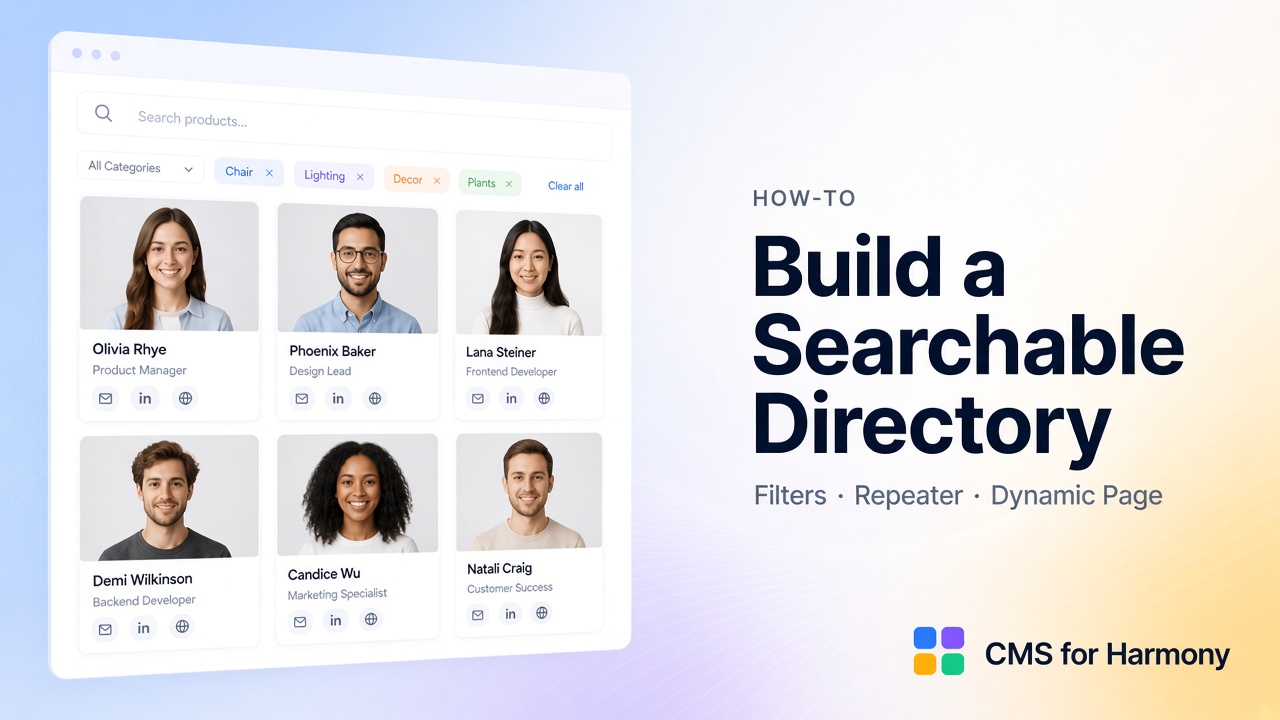
A searchable directory is a list of similar entries—people, members, vendors, locations, programs—that visitors can search and filter without you writing code. Think staff directory, partner list, or “find a practitioner” page.
You can get there with native Studio/Editor datasets for many category filters, or with CMS for Harmony widgets that ship search and filters together. That app works on Editor, Studio, and Harmony (the name does not mean Harmony-only).
On Harmony without a site yet: free starter site. Overview of related tutorials: Wix CMS Guide.
What you’ll put on the page
| Piece | Typical choice |
|---|---|
| Structured entries | CMS collection |
| Cards or dense rows | Repeater or Table |
| Find entries fast | Search & filters |
| Optional profiles | Native collection page + Dynamic Page |
| Optional spreadsheet source | Pro External database (no Dynamic Page links from Sheets) |
Native vs app, briefly
| Editor | Native no-code directory | App path |
|---|---|---|
| Studio | Datasets + Repeater + filter inputs | CMS for Harmony Repeater/Table |
| Editor | Classic CMS patterns (varies) | Same app widgets |
| Harmony | Connected lists; limited visitor filters on one list | Same app widgets |
Harmony details: CMS limitations.
Step 1 — Model the collection
Create something like Directory, Members, or Vendors. Useful fields:
- Name / Title (good slug source later)
- Category, Department, City, or Tags
- Photo
- Short summary and longer bio
- Optional Contact, Website, Address, Color
Add enough items that search feels worthwhile—ten empty rows won’t teach you much.
Step 2 — Choose Repeater or Table
| Layout | Use when |
|---|---|
| Repeater | Visual cards—most people directories |
| Table | Dense inventories—searchable table guide |
Add the widget, connect the collection, map fields. In the app, “cards” means Repeater layout.
Step 3 — Add search and filters
- Open Search & filters on the widget.
- Turn on search; add category filters.
- Wire them together: combine search and filters.
- Use Show filter for visitor controls; Choose value for hidden rules (for example, only Active members).
- Set Filters display to Top or Side.
- Publish and try real visitor paths: search only, filter only, both.
Overview of options: Search and filters overview. Docs: Search & filters.
Step 4 — Optional profile pages
- Choose More actions → Add collection page.
- Add a Dynamic Page on that page, set Page path and Item slug, and map SEO fields.
- Link each card or row to its item URL.
Walkthrough: Dynamic Pages. Native vs app: Dynamic Pages comparison.
Step 5 — Optional Pro extras
- Power the list from Google Sheets: connect Sheets (no Dynamic Page links from sheet data).
- Sell offerings from directory items: sell CMS items.
Example filter sets
| Directory | Filters to prioritize |
|---|---|
| Team / staff | Department, role |
| Association members | Region, specialty |
| Vendor / partner list | Category, city |
| Program index | Audience, topic |
| Clinic providers | Specialty, location |