The Dynamic Page widget shows one collection item per URL (for example /fruits/apple). The URL decides which collection item fills the layout.
Recommended: create the page as a native Wix dynamic page. Alternative: use the app /item Site Page when native collection pages fail (fixed path; item slugs not auto-listed in the sitemap). The Dynamic Page widget, and links from Repeater, Table, Slideshow, Media Gallery, and Calendar, open those URLs.
Create the page (recommended)
- Open the collection.
- Choose More actions → Add collection page.
- Wix adds a native dynamic page. Note its path — the part before the item slug. A Fruits collection might use
fruitsfor URLs like/fruits/apple.
Wix stores each item’s slug in the Item slug field.
Step-by-step: How to set up Dynamic Pages.
Connect to a native Wix dynamic page
On the Dynamic Page widget, and on any Repeater, Table, Slideshow, Media Gallery, or Calendar that should open those item URLs:
- Connect the same collection.
- Set Page path to the native page path (
fruitsin the example). Do not include a leading slash. - Set Page link field to Item slug — the Wix slug field. A collection set up for an older
/itempage may also have a Dynamic page slug field; leave it unselected on a new native page.
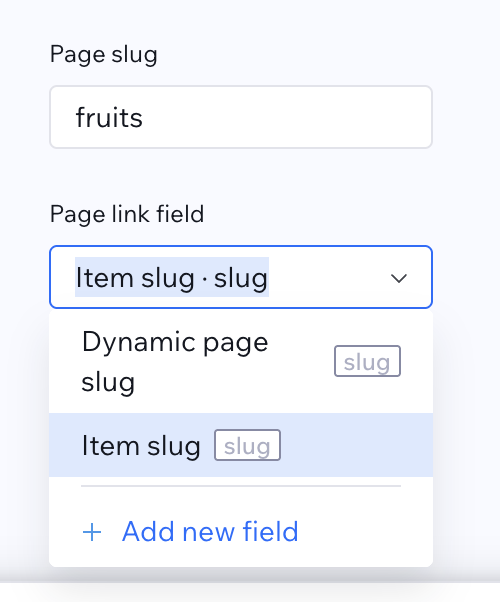
Use the same Page path and Page link field on the Dynamic Page widget and on every widget that links to that page. Place the Dynamic Page widget on the native collection page when that page should render the item.
Setup
Display widgets, including Dynamic Page, are added from Add → Elements → Installed Apps — see Add widgets. Place Dynamic Page on the native collection page.
Use AI setup in the panel for a plain-language start, then refine in Manual. Details: AI setup.
- Create a native Wix dynamic page for the collection (More actions → Add collection page).
- On that page, add Dynamic Page and open Settings.
- In Content, connect the collection and choose fields.
- In Dynamic page, set Page path and Page link field as in Connect to a native Wix dynamic page.
- In Layout, pick a mode (Preset / Custom / HTML / CSS).
- Optionally configure Filters, Data refresh, Payments, Formatting, Design, and SEO.
Content
Where: Manual overview → Content drill row
Where: Settings → Content
- Set Collection to the CMS collection this template should serve.
- Under Fields to display, check the fields visitors should see.
- Use Show system fields if you need
_idor other system fields. - Use Add more fields to jump to the collection and create missing fields, then return and check them.
Only fields you select here appear on the live item page (and become available under Formatting).
Filters
Where: Manual overview → Filters drill row
Where: Settings → Filters
Use filters to gate which collection items may show on the live item page (for example only when Status equals Published). This is not a search bar or filter toolbar — visitors still open one item per URL.
- Under Field filters, add filters with the same options as on Table and Repeater (Search & filters).
- Prefer Fixed mode for rules that always apply to every visitor.
- Show mode applies only when matching filter values are present in the page URL — turn on Sync URL query params if visitors may arrive from a filtered list that uses Add as URL query params.
- Set Unavailable message to the text visitors see when the item fails a filter (default: This content is unavailable.).
When an item does not match, the widget shows the unavailable message instead of field content (SEO tags from the widget are not applied in that case).
Access
Where: Settings → Access (Pro)
Separate from Filters: Access controls who may view item content (members or pricing plan holders), not whether the URL item matches a field rule. Protect the entire Dynamic Page or gate by item rules; customize the blocked state. See Content access.
Data refresh
Where: Settings → Data refresh
Full reference: Data refresh.
- Turn on Show refresh button if visitors should manually reload the current item.
- Set Auto-refresh to an interval (Every 15 seconds through Every 5 minutes), or leave Off.
Dynamic page URLs
Where: Manual overview → Dynamic page drill row
Where: Settings → Dynamic page
This section wires the template to item URLs. For a new page, use Connect to a native Wix dynamic page.
Native collection page
- Set Page path to the native page path (
fruitsfor/fruits/apple). - Set Page link field to Item slug.
- Optionally pick a Preview item to fill the template in the editor. Live pages always use the URL slug.
Alternative: /item Site Page
Use when native Add collection page fails on your site.
- In CMS Collections, choose Set up /item item page on the collection (creates Dynamic page slug).
- In the editor, place Dynamic Page on the app Site Page (
/item, or/item-1,/item-2, … when you add another Dynamic Page from Installed Apps). - Set Page path to that page’s prefix —
itemfor/item/jane-doe, oritem-1/item-2for additional Site Pages. - Set Page link field to Dynamic page slug.
- Optionally pick a Preview item. Live pages always use the URL slug.
Downsides: the prefix cannot be renamed. You can add the /item page to the sitemap, but individual item URLs are not listed automatically like native collection item pages.
An /item page already on the site
Existing /item pages from earlier app versions keep working with the same Page path and Dynamic page slug settings.
Hint in the panel: Editor only — live pages use the URL slug.
Payments
Where: Settings → Payments (Pro)
Catalog payments on the item page are separate from Form pay-on-submit. Full catalog setup: Catalog payments.
- Connect a collection in Content first.
- If the collection is not a catalog yet, use Enable payments.
- When the catalog is ready, turn on Show payment actions.
- Under Actions, enable Add to cart and/or Buy now.
- Expand each action to set Label, After add to cart (for Add to cart), and button style.
Without Pro, the section shows an upgrade prompt and payment actions stay unavailable.
Formatting
Where: Manual overview → Formatting drill row → expand a field by its display name
Where: Settings → Formatting → expand a field by its display name
Requires fields selected in Content. Full reference for Address, Color, Video, references, empty states, and date options: Field formatting.
Layout
Where: Settings → Layout
- Set Mode:
- Preset — then pick Hero, Split, Stack, or Minimal
- Custom — click Arrange fields and drag fields on a grid (same idea as custom Repeater cards)
- HTML / CSS — write markup with
{{…}}field tokens, plus CSS; Reset template restores the default
- For Preset and Custom, adjust Gap (px) and Padding (px).
Design
Where: Settings → Design
Set Background for the item template surface.
Per-item SEO
Where: Settings → SEO
Map collection fields so each item URL can have its own search and social preview:
- Title field — text field (or None)
- Description field — text field (or None)
- Share image field — image field (or None)
Recommended for public portfolios, directories, and listings. Walkthrough: SEO for CMS item pages.
Link from displays
Item pages are most useful when listings link into them.
Where (on Repeater, Table, Slideshow, Media Gallery, or Calendar): that widget’s Settings → Dynamic page
- Connect the same collection as this Dynamic Page.
- Turn on Link to item page (wording may vary slightly by widget).
- Set Page path to the same path as the item page (for example
fruits). Set Page link field to Item slug. - Choose how the click works for that widget (whole card/row, button, image, …).
Clicks then open that item’s URL on this template (for example /fruits/apple).
Another collection
Each collection gets its own native dynamic page:
- Open that collection and choose More actions → Add collection page.
- Add Dynamic Page to the new page and configure Content, Dynamic page, Layout, and the rest as above.
- Set Page path on the widget and on every linked display to that page’s path.