CMS for Harmony widgets live under Installed Apps in the editor. You can place the same widget more than once on a page (or across pages) — each instance has its own settings.
Before you start: Install CMS for Harmony on the site. See Getting started if you have not set up a collection yet.
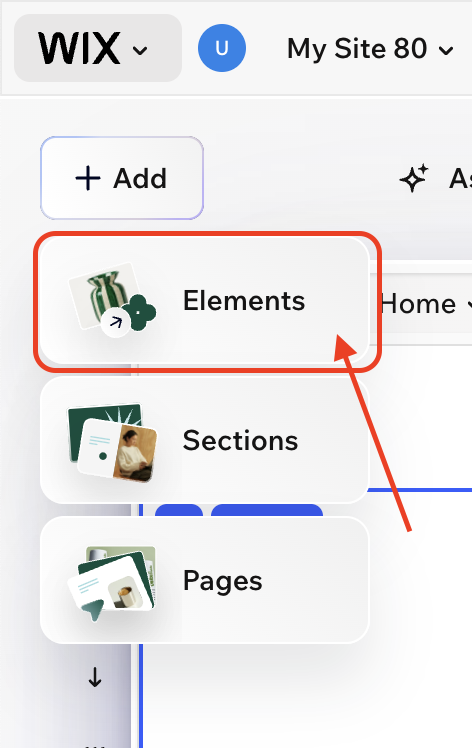
1. Open Elements
- Open your site in the Wix editor (Harmony, Studio, or Classic).
- Click + Add.
- Choose Elements.
2. Open Installed Apps
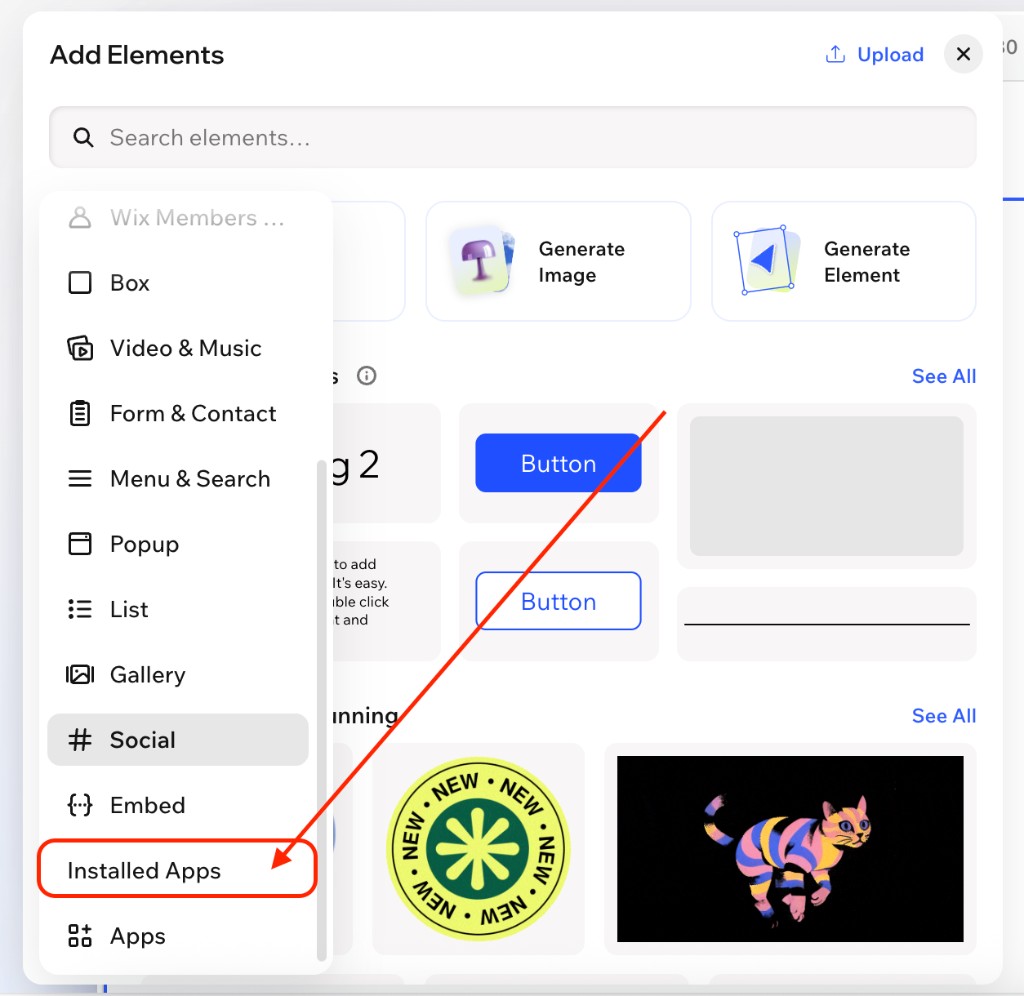
In the Add Elements panel, open Installed Apps in the left sidebar (scroll if needed — it sits near the bottom of the list).
3. Drag a CMS for Harmony widget
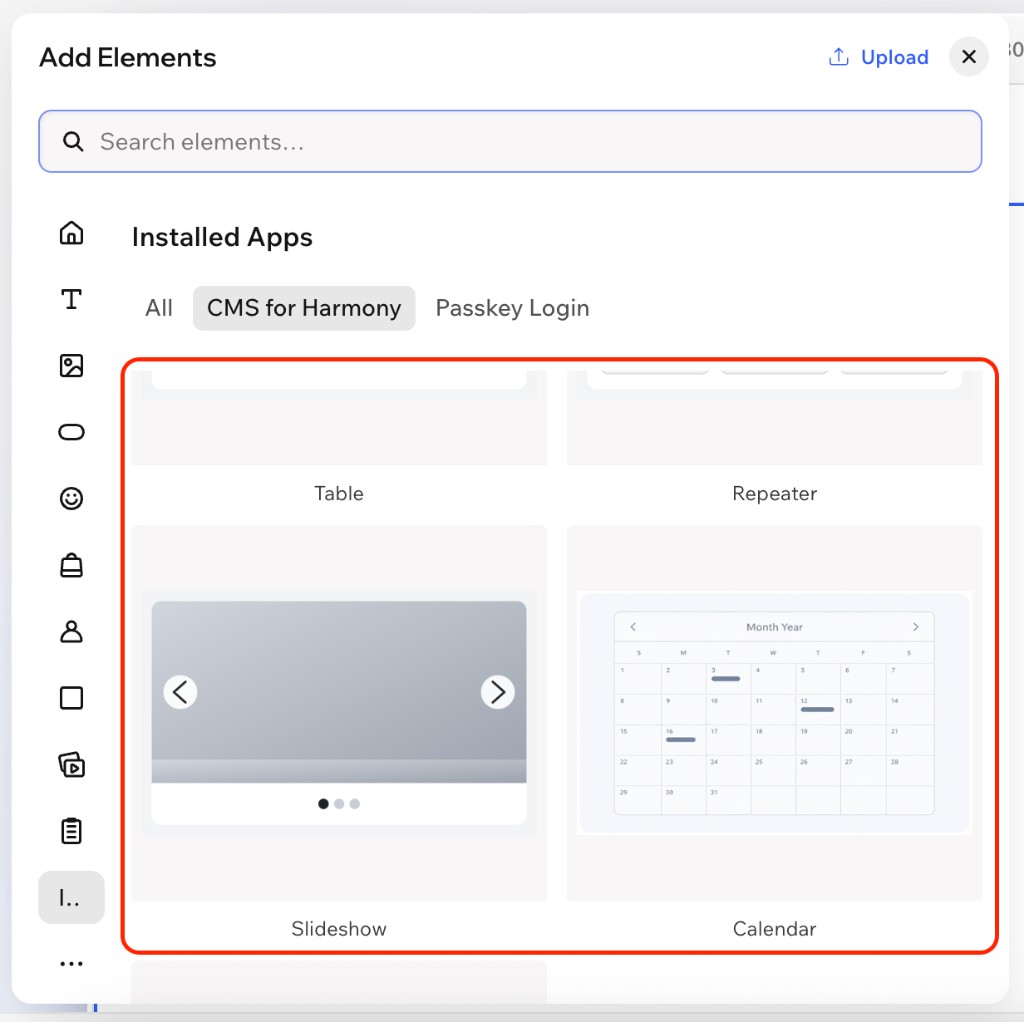
- Select the CMS for Harmony tab (or filter) under Installed Apps.
- Drag any widget onto the page — for example Table, Repeater, Slideshow, Media Gallery, Calendar, or Form.
- Select the widget and open Settings to connect a collection and configure it.
Add the same widget more than once
You can drag the same widget onto the page again whenever you need another instance. Each copy is independent — different collections, columns, filters, or layouts.
Dynamic Page
Dynamic Page is added the same way, then placed on a native Wix collection page (More actions → Add collection page). Details: Dynamic Page and How to set up Dynamic Pages.
Next steps
- Getting started — install and first connection
- Add collections — model fields and permissions
- Widget guides: Table · Repeater · Slideshow · Media Gallery · Calendar · Form · Dynamic Page
- Optional: AI setup to configure a widget from a short description